Notification systems were not designed to help you focus. They were designed to bring you back. Understanding that single fact changes how you should configure every app on your phone and laptop.
1. The Default Settings Are Optimized for the App, Not for You
Every app ships with notifications turned on by default. This is not an oversight. Product teams measure daily active users and session frequency, and push notifications are one of the most reliable levers for moving those numbers. When you install an app and tap “Allow Notifications” without adjusting anything, you are handing that product team a direct line to your attention.
The research on this is consistent: interruptions don’t just cost the time of the interruption itself. Gloria Mark’s work at UC Irvine found that it takes an average of over 23 minutes to fully return to a task after an interruption. A single Slack ping at the wrong moment isn’t a two-second cost. It’s a twenty-minute cost.
The fix is simple but requires a deliberate session: go through every app in your notification settings and turn everything off. Then add back only what you’d genuinely want a colleague to tap you on the shoulder for. That’s a much shorter list than you think.
2. Sound, Badge, and Banner Are Three Different Decisions
Most people treat notification settings as a binary: on or off. But iOS and Android both give you granular control over delivery method, and each channel has a different cognitive cost.
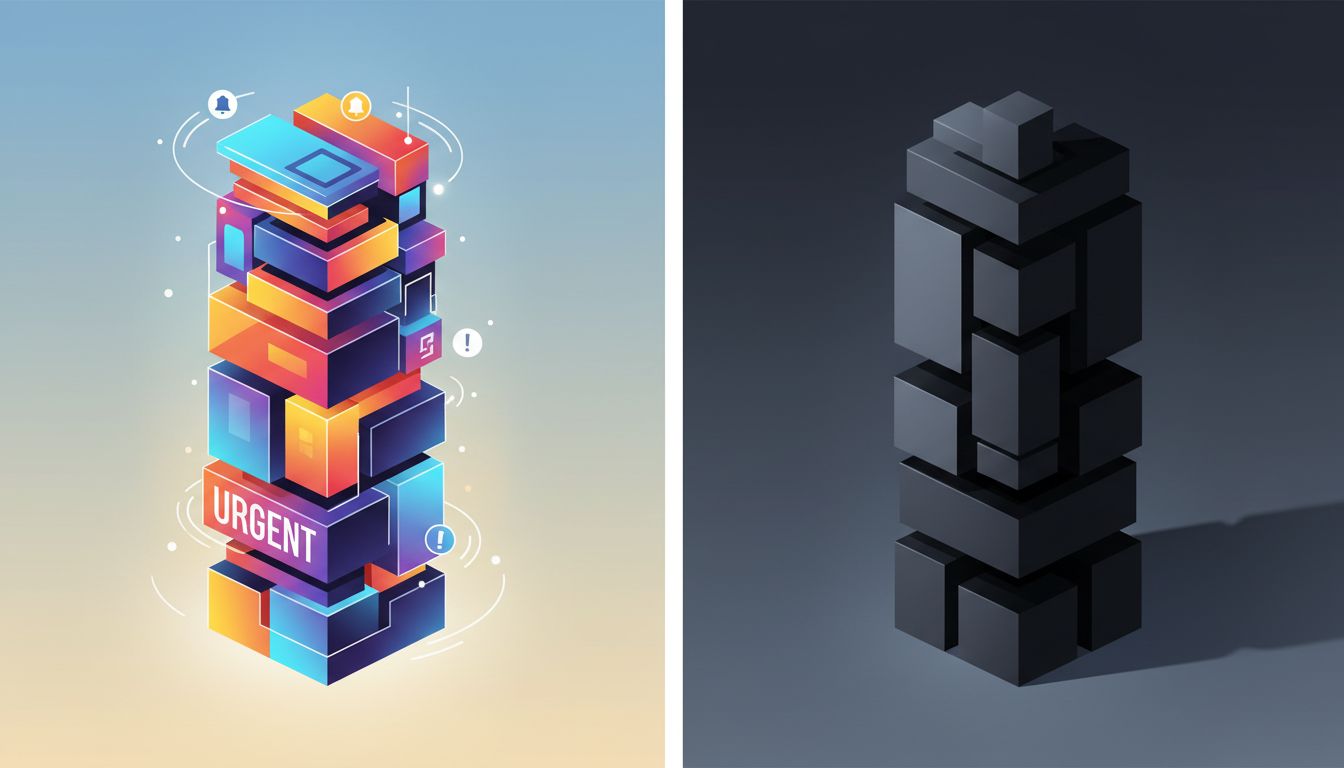
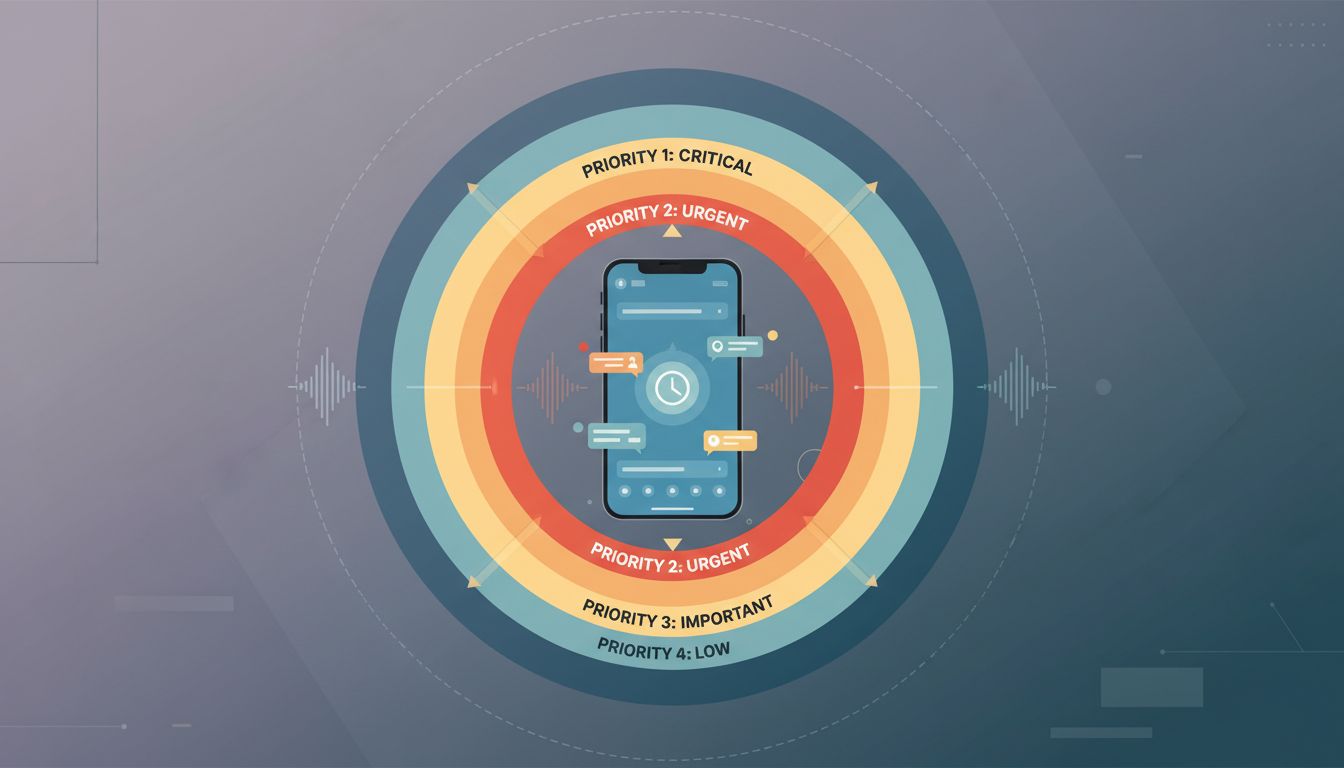
Sound is the highest-cost channel. It interrupts regardless of what you’re doing and primes your nervous system for urgency even when nothing urgent happened. Banners appear at the top of your screen and pull your eyes away from whatever you’re reading or writing. Badges (the red dot on an app icon) are low-cost because you only see them when you’re already switching contexts. If an app doesn’t need sound or banners, turn them off and leave only the badge. You’ll get the information when you choose to look for it, which is how almost all information retrieval should work.
3. Notification Channels Were Built for Developers, Not Users
Android introduced notification channels in Android 8 (Oreo) specifically so that users could control different types of notifications from the same app independently. A messaging app might have channels for direct messages, group chats, and system alerts. You can silence group chats entirely while keeping direct messages on.
Almost no one uses this. Most people don’t know it exists. If you use Android, go to any app’s notification settings and look for “Categories” or “Channels.” You’ll often find five or six options where you were managing one. iOS handles this differently, through notification summaries and Focus modes, but the principle is the same: the platform gives you more control than the defaults expose.
Spend fifteen minutes on your most active apps and actually configure the channels. You will permanently reduce interruptions without losing anything you actually need.
4. Scheduled Summaries Are Underused and Genuinely Useful
Both iOS 15+ and Android 12+ support notification summaries that batch low-priority alerts and deliver them at times you choose. This is one of the most useful features in modern mobile operating systems, and adoption is low.
The logic here is the same as batching email. If you check email three times a day instead of responding to every incoming message, you do the same cognitive work in a fraction of the time and spend the rest of your day in actual work mode. Notification summaries apply that logic to apps you haven’t manually checked. Set a delivery time for morning, midday, and evening, put your lower-priority apps into the summary, and you’ve effectively converted push notifications into pull notifications for everything that doesn’t require immediate action.
5. “Do Not Disturb” Is Too Blunt. Focus Modes Are the Right Tool.
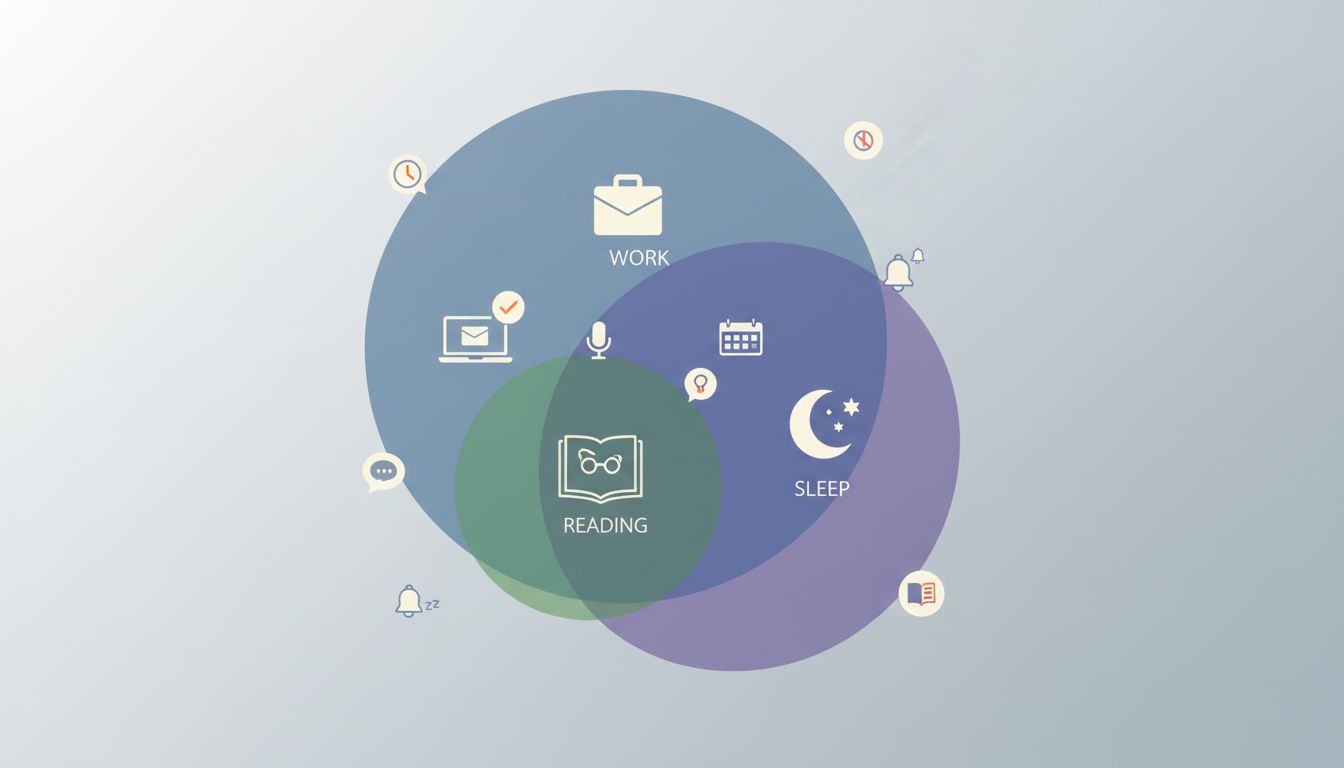
Do Not Disturb silences everything, which makes it feel like a last resort rather than a daily tool. Focus modes (available on iOS and through Digital Wellbeing on Android) let you create named contexts, like Work, Reading, or Sleep, and configure different notification rules for each.
In a Work focus, you might allow calls from your team and messages from a specific contact list, while silencing everything else. In a Reading focus, you might block everything except emergency calls. This is a more honest model of how attention actually works: you’re not always equally available to all inputs, and your tools should reflect that. The goal is not to become unreachable. The goal is to be reachable on terms that match what you’re actually doing.
6. Third-Party Apps Often Ignore the Rules You Set
This is an underappreciated problem. Some apps, particularly ad-supported or engagement-driven ones, use creative workarounds to get in front of you even when you’ve asked them not to. This includes calendar invites used as marketing, in-app notification badges that bypass system settings, and background refresh that technically doesn’t notify you but keeps the app warm and present.
You have a few reliable countermeasures. First, revoke background app refresh for any app you don’t need updating in real time (Settings > General > Background App Refresh on iOS). Second, check whether an app has your email for marketing purposes separately from push notifications, because those are two independent channels. Third, be honest about whether an app earns a place on your home screen at all. The apps you keep front-and-center train you to check them. The ones buried in a folder or deleted entirely stop pulling your attention.
7. The Right Configuration Is Personal, But the Audit Is Universal
There is no single correct notification setup. Someone who is on call for production systems has genuinely different needs than someone writing long-form work during focused blocks. What you’re optimizing for is alignment: your notification settings should reflect your actual priorities, not the app developers’ priorities.
The audit takes about an hour. Open your system notification settings, go through every app, and ask one question for each: if this app sends me something right now, would I want to be interrupted immediately? If yes, keep the channel open. If no, demote it to a badge or a scheduled summary, or turn it off entirely. Do this on both your phone and your laptop, because most people have configured one and ignored the other.
You will not miss anything important. The things that are actually urgent will find you through the channels you deliberately leave open. Everything else will wait, which is what it should have been doing all along.