The internet has no idea who you are. It doesn’t store your name, your account, or anything personally meaningful about you at the network level. And yet, when you load a webpage, the response finds its way back to the exact browser tab that asked for it, ignoring every other device on your network and every other tab you have open. This is not magic. It’s a layered system of temporary identifiers, and understanding how it works changes how you think about both networking and privacy.
1. Your Device Gets a Local Address That Means Nothing Outside Your Home
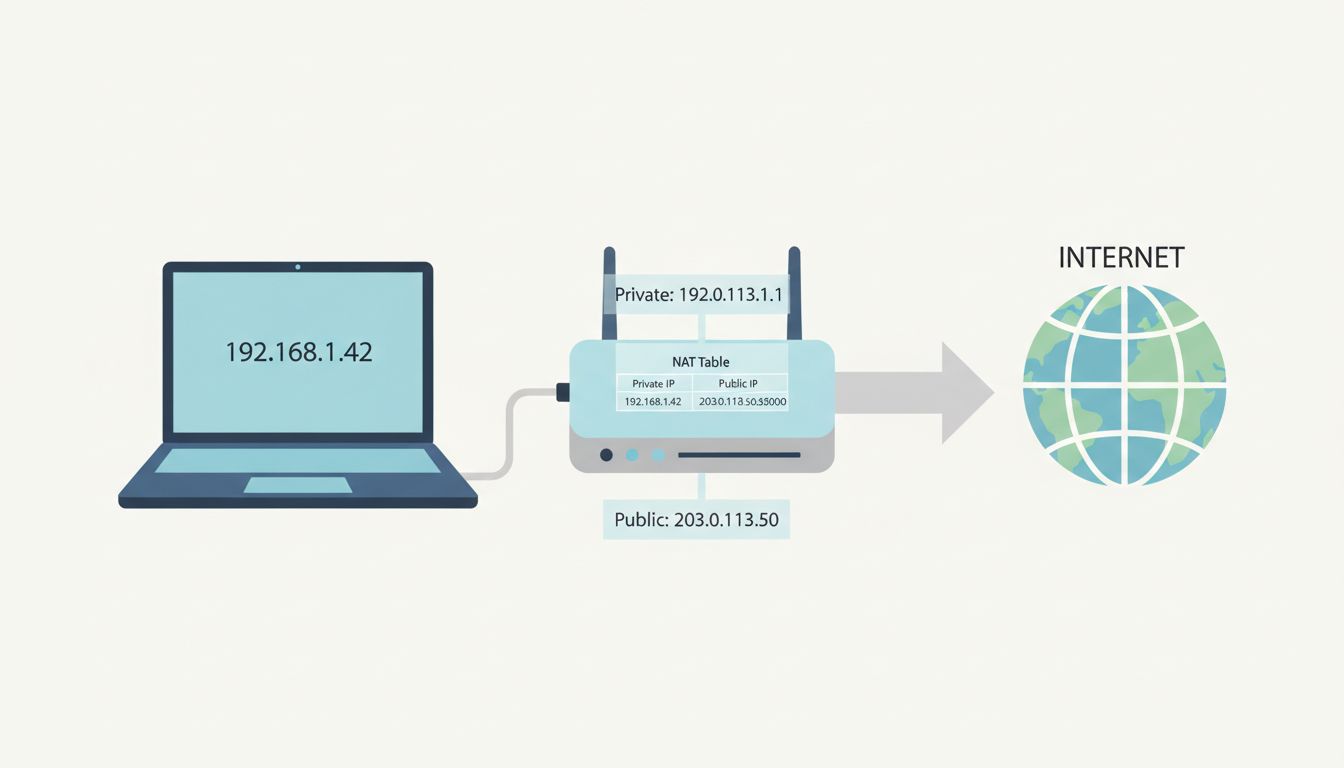
When your laptop connects to your home router, the router hands it a private IP address using a protocol called DHCP (Dynamic Host Configuration Protocol). Something like 192.168.1.42. This address is yours on your local network, but it’s meaningless to the rest of the internet. Millions of other devices around the world are also called 192.168.1.42 right now. The address space defined in RFC 1918 deliberately reserves ranges like 192.168.x.x, 10.x.x.x, and 172.16.x.x for private use, which is why your neighbor’s network can use the same addresses as yours without any conflict.
So when your request leaves your house, it can’t carry your local address as a return label. Something has to translate it.
2. NAT Swaps Your Private Address for a Public One at the Door
Your router performs Network Address Translation (NAT). When a packet leaves your device headed for the internet, the router replaces your private IP (192.168.1.42) with its own public IP address, the one your ISP assigned to it. It also keeps a translation table: “outgoing request from 192.168.1.42 on port 54821 is now appearing as 203.0.113.7 on port 54821.” When the response comes back to 203.0.113.7:54821, the router looks up its table and forwards the packet back to 192.168.1.42.
This is why multiple devices in your house can all use the internet simultaneously under one public IP. The router is silently rewriting addresses on every packet, both directions. NAT was originally designed as a stopgap for IPv4 address exhaustion, and it worked so well that IPv6 adoption (which would eliminate the need for NAT) has taken decades longer than anyone expected.
3. Ports Are the Reason the Right Application Gets the Data
An IP address identifies a machine. A port identifies a process on that machine. When your browser makes a request, your operating system assigns it a temporary (ephemeral) source port, typically something above 1024, chosen from an available range. The server you’re talking to listens on well-known ports: 443 for HTTPS, 80 for HTTP, 25 for SMTP.
So the full address of a connection is actually a four-tuple: source IP, source port, destination IP, destination port. When the server responds, it swaps source and destination. The response arrives at your machine addressed to your IP and your ephemeral port. Your OS hands it to whichever process owns that port. If you have ten browser tabs open, each TCP connection has its own port number, and the OS routes responses to the right one. The browser tab never needs to announce itself. The port is its identity.
4. TCP Makes Connections Stateful So Order and Completeness Are Guaranteed
IP is a stateless protocol. Packets can arrive out of order, or not at all. TCP (Transmission Control Protocol) sits on top of IP and adds statefulness through a handshake. Before any data transfers, client and server exchange SYN and SYN-ACK packets to establish a connection and agree on sequence numbers. Every byte sent gets a sequence number; every received batch triggers an acknowledgment. If packets go missing, TCP detects the gap and requests retransmission.
This is why you can download a file reliably over a flaky connection. TCP keeps retrying and reordering until the full byte stream arrives intact. For applications where speed matters more than completeness (live video, DNS lookups, online gaming), UDP skips all of this. UDP just fires packets and trusts the application layer to handle whatever arrives. The tradeoff is explicit: reliability costs latency.
5. DNS Translates Names to Numbers Before Any of This Even Starts
Before your browser sends a single packet to a web server, it has to know that server’s IP address. You type “example.com”; the network needs numbers. Your OS checks its local DNS cache first. If the address isn’t cached, it sends a query to a DNS resolver (usually one provided by your ISP, or a public one like 1.1.1.1 or 8.8.8.8). The resolver works through a hierarchy: root name servers, top-level domain servers, then authoritative servers for the specific domain. The answer comes back as an IP address, gets cached for a duration specified by the domain’s TTL (time-to-live) field, and then your browser can actually make the connection.
DNS is famously unencrypted by default, which means your ISP and anyone on the path can see every domain you query, even if the connection itself is HTTPS. DNS-over-HTTPS (DoH) and DNS-over-TLS (DoT) fix this, but adoption is still uneven. What looks like a privacy-preserving encrypted connection often leaks a complete log of domains visited at the DNS layer.
6. The MAC Address Handles the Last Few Feet
IP addresses handle routing across the internet. But within a local network (your home WiFi, a corporate LAN), a different identifier takes over: the MAC address, a 48-bit hardware address burned into every network interface at manufacture. When your router needs to deliver a packet to 192.168.1.42, it uses ARP (Address Resolution Protocol) to ask “who has 192.168.1.42?” Your device responds with its MAC address, and the router sends the frame directly to that hardware address.
MAC addresses never leave your local network under normal operation. The server you’re talking to in Frankfurt has no idea what your MAC address is. What looks like a single end-to-end connection is actually a series of hops, each one using MAC addresses for the local segment and IP addresses for the global routing. Every router along the path discards the incoming frame’s MAC headers and creates new ones for the next hop.
7. The Browser Tab Problem Is Solved by Something Sitting Above All of This
Here’s the piece that trips most people up. TCP connections identify themselves by port numbers, but a modern browser might have dozens of open connections multiplexed over fewer underlying sockets, especially with HTTP/2 and HTTP/3. HTTP/2 introduced multiplexing, allowing multiple request-response pairs to share a single TCP connection using stream IDs. HTTP/3 goes further, running over QUIC (which runs over UDP) and handling streams at the transport layer itself.
In practice, the browser keeps an internal map of which stream ID corresponds to which tab and which resource. The network delivers bytes; the browser routes them internally. By the time data hits your tab, it has passed through: a MAC-addressed local frame, a NAT-translated IP packet, a TCP or QUIC stream with a port, a DNS-resolved hostname, and an HTTP stream ID. None of those layers know your name. Together, they know exactly where to put your data.