
The Simple Version
When you copy text, your operating system stores it in a shared memory region called the clipboard. When you paste, the receiving app reads from that region. That’s the version most people carry around, and it’s accurate enough for casual conversation — but it skips almost everything interesting.
What the Clipboard Actually Is
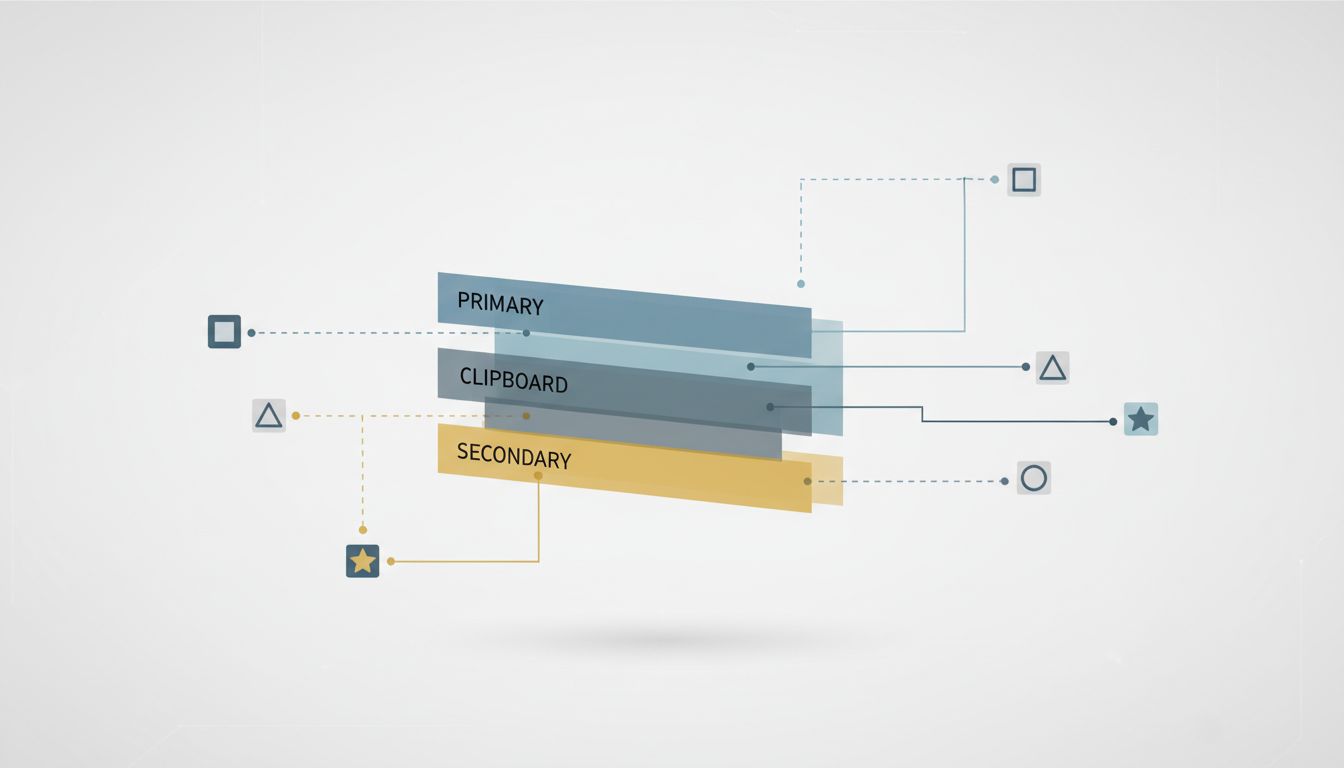
The clipboard is not a file. It’s not a fixed memory address. On Windows, it’s a set of data formats registered with a central system service. On macOS, it’s a structure managed by a framework called NSPasteboard. On Linux, the situation is more chaotic: there are technically three separate clipboard-like mechanisms (PRIMARY, CLIPBOARD, and SECONDARY), each with different behavior, and the one you use when you press Ctrl+C is not the same one that gets populated when you highlight text with your mouse.
This is worth pausing on. Many Linux users discover for the first time, years into using the system, that they have two clipboards running simultaneously and have been using both without realizing it. Highlighting text copies it to PRIMARY. Pressing Ctrl+C copies it to CLIPBOARD. Middle-clicking pastes from PRIMARY. Ctrl+V pastes from CLIPBOARD. These are separate buffers with separate contents.
The practical consequence: if you highlight something, then highlight something else before pressing Ctrl+C, you now have different content in each clipboard. This explains a category of paste errors that most people attribute to user mistake.
The Protocol Nobody Designed
Here’s the counterintuitive part: the clipboard doesn’t actually store your text most of the time. It stores a promise to provide text.
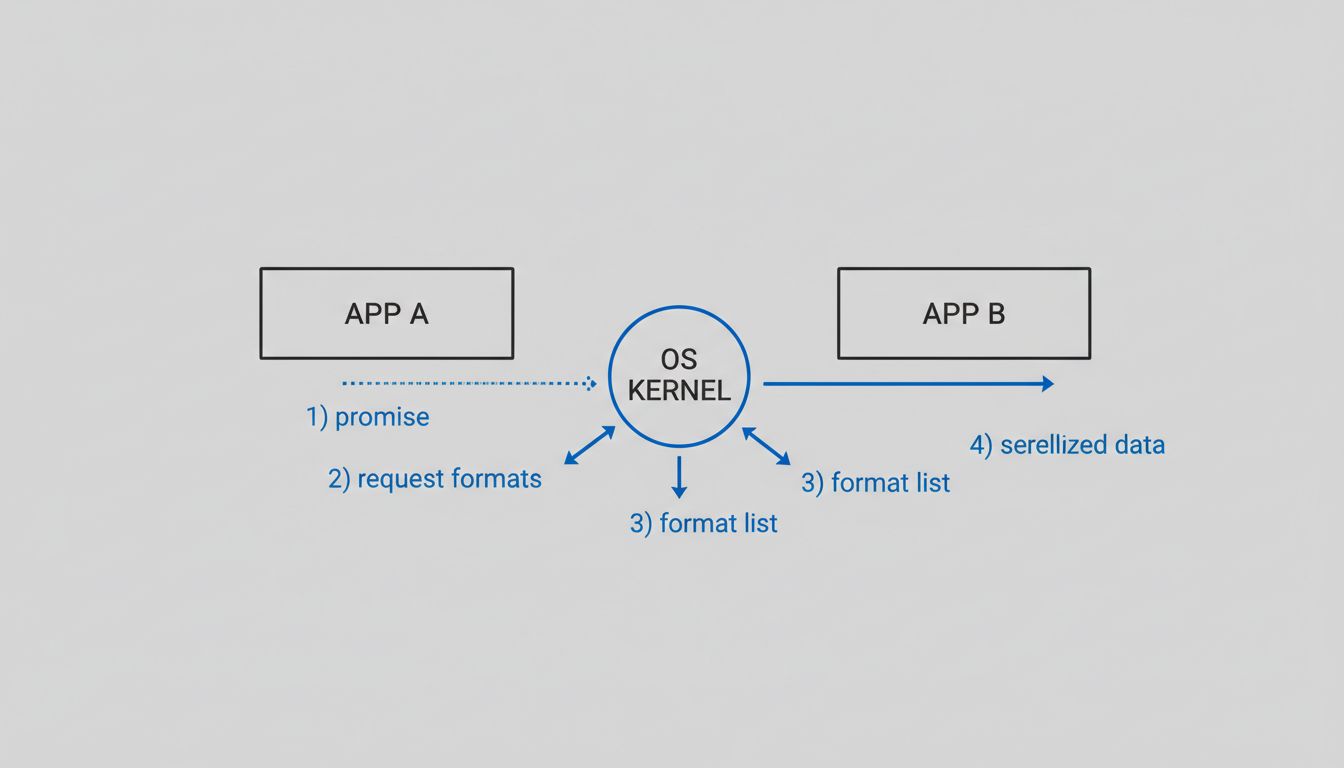
This is called lazy copying, and it exists for a practical reason. When you copy a cell range in Excel, the application doesn’t immediately serialize every value, formula, and format into a blob and hand it to the OS. That could be slow and memory-intensive for large selections. Instead, the app tells the clipboard system: “I have data. Ask me for it when someone needs it.”
The clipboard service records that the source app has registered ownership and which formats it can provide. When you switch to another app and press Ctrl+V, the destination app asks the clipboard what formats are available. Then it requests the one it wants. Only at that moment does the source app do the actual work of serializing the data.
This has an important implication that most users encounter without understanding: if you copy something from App A, close App A, and then try to paste, the paste sometimes fails or produces garbage. The clipboard held a promise, not data. Closing the app voided the promise. Some applications (Microsoft Office is one) try to detect when they’re closing while they own the clipboard and flush a serialized copy first. Others don’t bother.
Format Negotiation
When the destination app requests data from the clipboard, it doesn’t just ask for “text.” It presents a priority-ordered list of formats it can accept: maybe RTF first, then HTML, then plain Unicode text, then ASCII. The source app responds with the highest-priority format it can supply.
This negotiation is why pasting into a plain-text editor strips formatting while pasting into Word preserves it. The plain-text editor only accepts plain text, so that’s what it requests. Word requests RTF or its own internal format, gets it, and renders accordingly.
This also explains why copying from a web browser and pasting into a design tool often produces surprisingly rich output. Chrome, for instance, puts the selection on the clipboard in multiple formats simultaneously: plain text, HTML, and sometimes a rendered image. The design tool picks the format most useful to it.
The format negotiation step involves at least two inter-process communication calls — one to query available formats, one to request data — each of which crosses process boundaries and goes through the OS kernel. On a modern machine this takes microseconds, which is why it feels instant. But the machinery underneath is not simple. As a point of comparison, what actually happens inside a CPU when you run a for loop involves a similar gap between perceived simplicity and actual mechanism.
Where It Breaks
The clipboard is a shared global resource with no access control. Any process on your system can read the clipboard at any time, which is why clipboard-monitoring malware is a real attack category. Cryptocurrency wallet addresses get replaced in transit. Passwords copied from password managers get intercepted before they reach the login field. The clipboard was designed for convenience in a single-user computing era, and security was not part of the design brief.
Beyond security, the global-resource design creates race conditions. If two applications both try to claim clipboard ownership at nearly the same moment, the behavior is OS-dependent and often undefined. Concurrency bugs that silently corrupt data rather than crash are especially common in clipboard handling code because the failure mode is usually a wrong paste result, not a visible error.
The modern mitigation on both Windows and macOS is a clipboard history feature that maintains a log of recent clipboard contents, converting lazy-copied promises into real stored data. This helps with the “closed the app” problem but doesn’t solve the security issue.
Why It’s This Way
The clipboard protocol dates to the early 1980s. The Xerox Star, released in 1981, had a cut-copy-paste model. Apple brought it to consumer computing with the Lisa and Macintosh. The core model has not changed meaningfully in forty years because changing it would require every application that interacts with the clipboard to update simultaneously — a coordination problem with no central authority capable of forcing it.
The result is a protocol layered with workarounds: lazy copying to handle performance, format negotiation to handle compatibility, clipboard managers to handle the promise-invalidation problem, and OS-level security sandboxing (introduced in iOS and later in macOS) to handle the access-control gap.
For most users, most of the time, this works well enough that the complexity stays invisible. That’s genuinely good engineering. But the next time a paste produces the wrong content, or fails entirely, the explanation is almost certainly somewhere in this chain: a voided promise, a format mismatch, a race condition, or a process that intercepted the data somewhere between Ctrl+C and Ctrl+V.