What the Lock Actually Certifies
The padlock icon in your browser’s address bar means one specific thing: the connection between your device and the server is encrypted using TLS (Transport Layer Security). Data in transit is scrambled. An eavesdropper on your Wi-Fi network can’t read the traffic.
That’s it. That’s the whole claim.
The lock does not mean the website is legitimate. It does not mean the company behind it is trustworthy. It does not mean your data won’t be stolen, sold, or mishandled. It means the pipe is private. What flows through that private pipe is a completely separate question.
This distinction matters enormously, because a sizable portion of the general public has been trained, through years of browser UI design and security messaging, to treat the padlock as a general-purpose “safe” indicator. It isn’t.
How Phishing Sites Broke the Mental Model
For years, security researchers and browser vendors promoted a simple heuristic: look for the padlock before entering sensitive information. The logic was sound at the time. In the early 2000s, obtaining a TLS certificate required meaningful vetting. It was an indirect signal of legitimacy because the process filtered out casual bad actors.
Then certificate authorities introduced Domain Validation (DV) certificates, and later, free automated certificates arrived through services like Let’s Encrypt (launched publicly in 2016). Both developments are genuinely good for the internet. Encrypting all web traffic is the right goal, and lowering the cost to zero accelerated adoption dramatically.
The side effect: the padlock became completely decoupled from trustworthiness. Anyone can get a free TLS certificate for any domain they control within minutes. A phishing site impersonating your bank can have a valid padlock. The data you submit goes over an encrypted connection, straight to a criminal.
This isn’t theoretical. By the early 2020s, researchers studying phishing URLs were finding that the majority of phishing sites used HTTPS. The Anti-Phishing Working Group has documented this trend across multiple annual reports. The padlock had been fully weaponized as a trust signal by the people it was supposed to protect against.
The Certificate System and Its Real Guarantees
To understand what you actually get from HTTPS, it helps to understand what certificates certify.
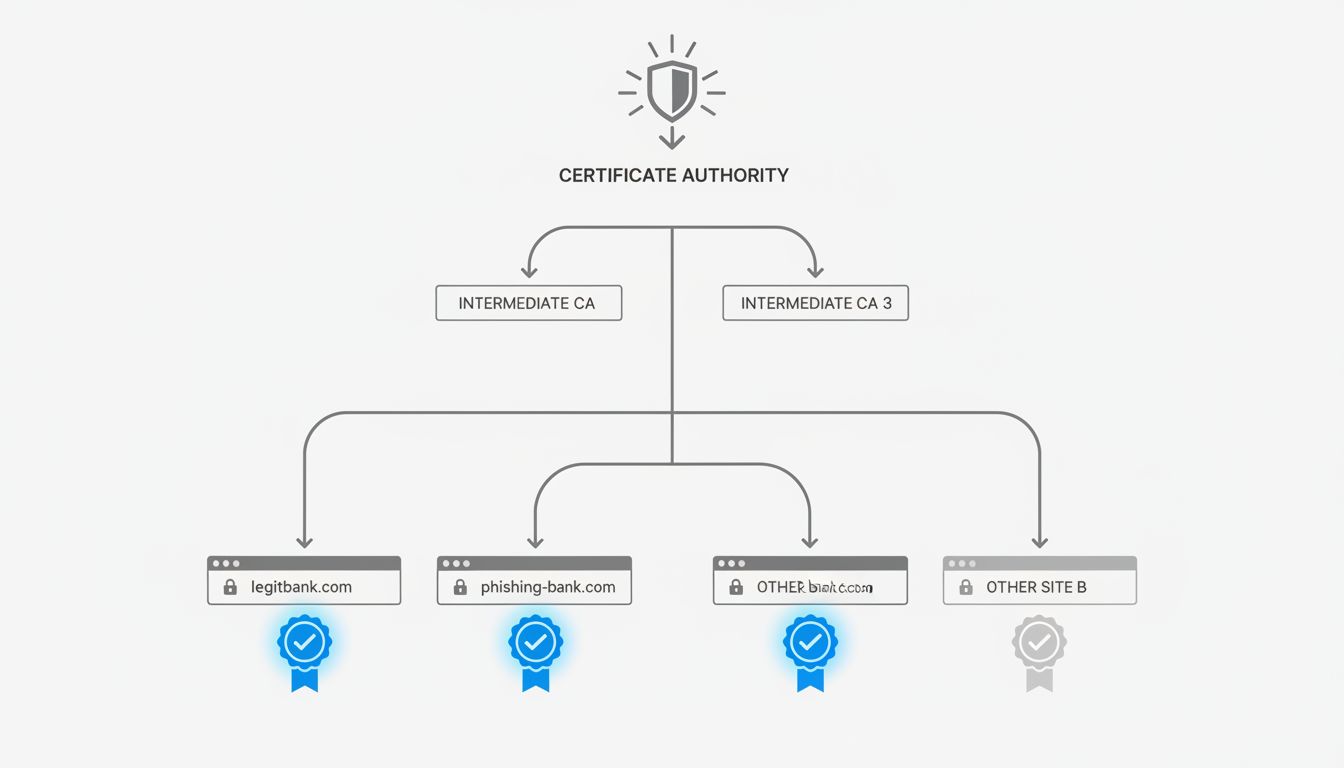
A TLS certificate contains a public key and an assertion about who owns the domain. There are three validation levels: Domain Validation (DV), Organization Validation (OV), and Extended Validation (EV). DV certificates, which represent the vast majority of certificates in use, only confirm that the person requesting the certificate controlled the domain at the time of issuance. No human at a certificate authority verified that the requester is a real business, has legitimate purposes, or is who they claim to be.
Organization Validation adds checks on business registration records. Extended Validation historically added the most rigorous vetting and displayed the company name in the browser’s address bar. But in 2019, Chrome and Firefox removed the EV name display from the address bar, citing research showing it provided minimal security benefit. The visual distinction that actually communicated organizational identity was quietly retired.
So the certificate infrastructure that underlies the padlock, for almost every site you visit, verifies domain control. Nothing more.
Certificate Transparency Helps, But Isn’t What You Think Either
One genuine improvement in the certificate system is Certificate Transparency (CT), a system requiring that all publicly trusted certificates be logged in publicly auditable logs. This makes it much harder for a certificate authority to secretly issue a fraudulent certificate for, say, google.com, without that certificate being detectable.
CT is a meaningful defense against a specific attack: rogue certificate issuance by a compromised or malicious certificate authority. Google mandated CT logging for certificates trusted in Chrome starting in 2018, and it has caught real misissuances.
But CT doesn’t help you determine whether the site you’re visiting is legitimate. The logs don’t evaluate intent. A sophisticated phisher can register a domain, get a CT-logged certificate, and proceed. The transparency system flags anomalies visible to security researchers monitoring the logs. It doesn’t protect individual users in real time from sites that obtained their certificates through entirely proper channels while planning to commit fraud.
This is the recurring pattern in web security infrastructure: tools that are genuinely useful for specific, narrow threat models get interpreted by users and sometimes by vendors as broader safety guarantees.
Why Browser Vendors Dropped the Padlock
By 2023, Google had removed the padlock icon from Chrome entirely, replacing it with a neutral “tune” icon that opens site settings. Mozilla followed a similar direction. The stated reasoning from Chrome’s team was explicit: they concluded the padlock icon wasn’t communicating anything useful to most users, and that its positive connotation was actively misleading.
This was a significant admission. The padlock had been the primary visual security indicator for over two decades. Removing it acknowledged that the security industry had over-indexed on a UI element that measured the wrong thing.
The replacement metaphor (a settings icon) isn’t perfect either. It doesn’t communicate “your connection is encrypted,” which is still worth knowing. But the old icon communicated something false to most people, and a false signal that confers misplaced confidence is worse than no signal.
The challenge this reveals is fundamental to security UI design: how do you communicate nuanced technical states to non-technical users without either lying by omission or inducing alert fatigue? There’s no clean answer. The security community has been wrestling with the problem of how to design alerts that actually change behavior for decades, and the padlock saga is a textbook example of what happens when a signal becomes so ubiquitous it stops carrying information.
What Threat Model Are You Actually Facing?
For most people, the actual threats from web browsing break into a few categories:
Network-level eavesdropping. Someone intercepting your traffic on a public Wi-Fi network. HTTPS genuinely protects against this. The lock is doing its job. This attack vector, while real, is less common than the industry’s historical emphasis on it would suggest. Most attackers go after easier targets.
Phishing and impersonation. Fake sites designed to look like real ones. HTTPS is irrelevant here. The attacker controls the domain and has a valid certificate. The threat is entirely about whether you can verify you’re at the right domain, which requires careful attention to the URL itself, not any icon.
Malicious sites serving malware. Again, HTTPS is orthogonal. A site can deliver malware over an encrypted connection.
Data breaches at legitimate companies. The data you submitted, over a perfectly encrypted connection, to a legitimate company, stored poorly, later exposed. HTTPS doesn’t protect data at rest. The breach that exposes your information might happen years after you submitted it.
The takeaway here isn’t that HTTPS is useless. Encrypting connections in transit is important baseline hygiene. The problem is that it became the visible, marketed proxy for a broader concept of web safety it never actually measured.
What Actually Protects You
The honest answer is that the mechanisms that actually protect most users are less visible and less glamorous than an icon.
Browser-based phishing detection (Google Safe Browsing, Microsoft SmartScreen) uses reputation databases and heuristics to flag known malicious URLs. This runs in the background and catches many phishing sites before they load. The weakness is the window between a new malicious site going live and its appearance in these databases.
Password managers are underrated security tools. They autofill credentials only on the exact domain they were saved for, which means a convincing fake of your bank’s login page gets no autofill, a friction signal that can catch a phishing attempt even if the user didn’t visually notice the spoofed URL.
Multi-factor authentication limits the damage from successful phishing. If your password is stolen, MFA creates a second barrier. Hardware security keys (FIDO2/WebAuthn) go further: they’re cryptographically bound to the legitimate domain, so even if you enter your credentials on a phishing site, the key won’t authenticate against it.
These layered defenses don’t have a single icon to point to. They’re not as narratively satisfying as “look for the lock.” But they’re what the threat model actually calls for.
What This Means
The padlock told you about the pipe, never about the destination. The security industry built user trust around a signal that was meaningful in a narrow context, then watched as that context changed entirely while the mental model didn’t update.
For practitioners, this is a reminder that security UI has consequences. A design decision that trains users to associate an indicator with a broader concept than it measures creates a vulnerability the moment that indicator becomes cheap to obtain or easy to fake.
For everyone else: verify URLs directly, especially before entering credentials. Use a password manager. Enable MFA on accounts that matter. Trust the browser’s phishing warnings when they fire. None of this is captured in a padlock, but all of it is what actually stands between you and the realistic threats you face.